Talk
Press ⌘J, ask, and keep working. Replies are spoken and stay on screen. Enter sends early.
 bol
Download
macOS voice assistant
Press ⌘J and say what you need. Bol listens, hands it to Claude Code with full access to your Mac, and talks back when it's done. It runs on the Claude subscription you already pay for.
Bol is a menu-bar app that puts Claude Code behind your voice. It isn't a chatbot that tells you how to do things. It opens the apps, runs the commands, reads your screen and does them.
sudo, pushing code or sending a message gets a spoken
“shall I proceed?”.
Talk when you want something done, dictate when you want to write, and come back to read the transcripts.
Press ⌘J, ask, and keep working. Replies are spoken and stay on screen. Enter sends early.
Hold fn anywhere and speak. Double-tap to lock it on hands-free. ⌥⇧V pastes the last one again.
Open Bol with ⌘T to read every thread, see the steps it took, and follow up on any task.
Your voice goes in one end and work comes out the other. The thinking happens in Claude Code on your own Mac, signed in with your Claude account.
Bol uses the Claude Code installed on your Mac and the subscription it's signed in with. Speech-to-text runs on that subscription too. There's nothing else to pay for unless you choose a cloud voice.
Threads, tasks, memory and dictations live in ~/.bol as plain JSONL and
markdown. Bol keeps its own copy of every transcript, so Claude Code's cleanup never
takes your history.
Screen access can be automatic, ask first, or off. Accessibility, Screen Recording and Full Disk Access are each optional, and setup shows their live status.
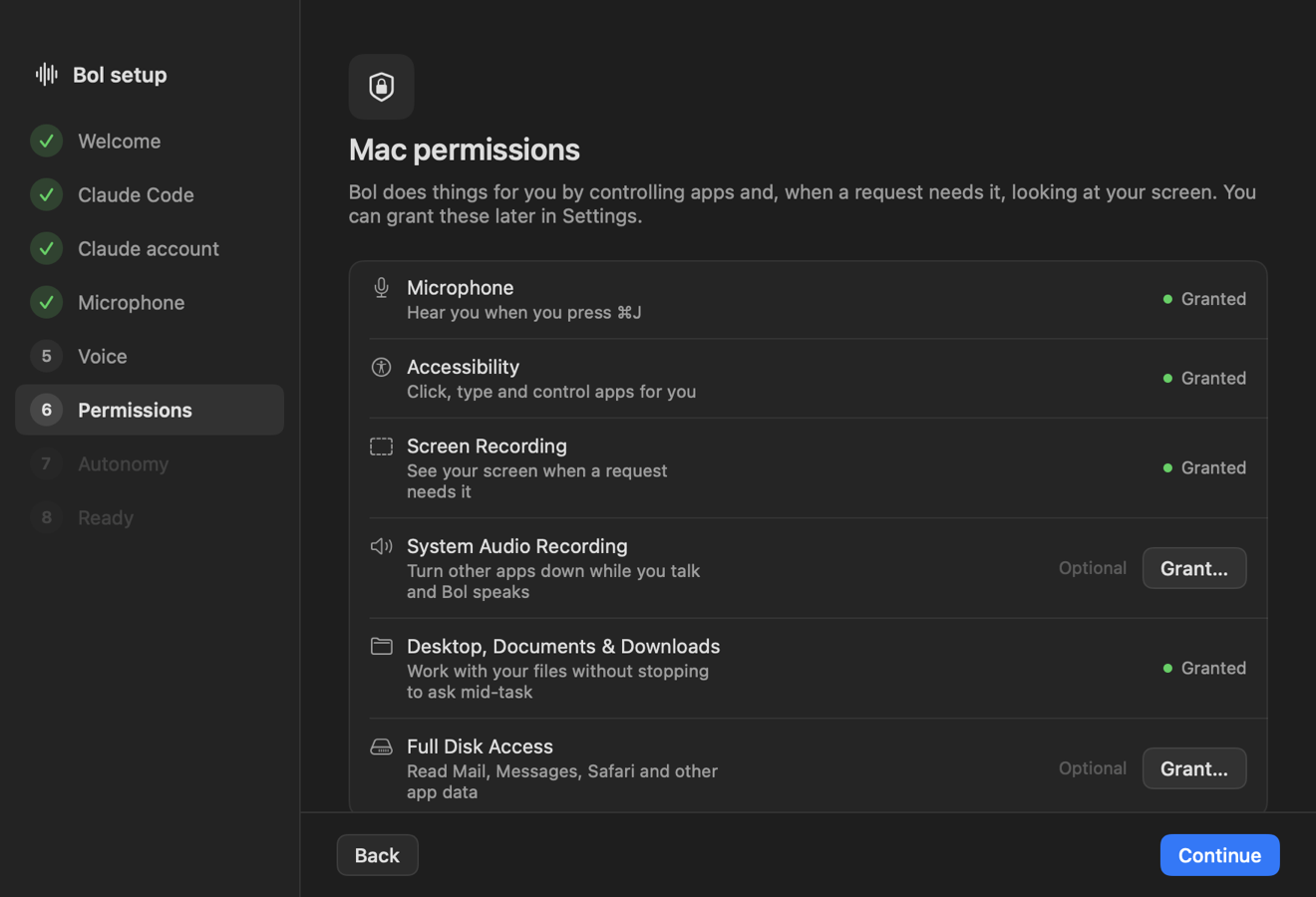
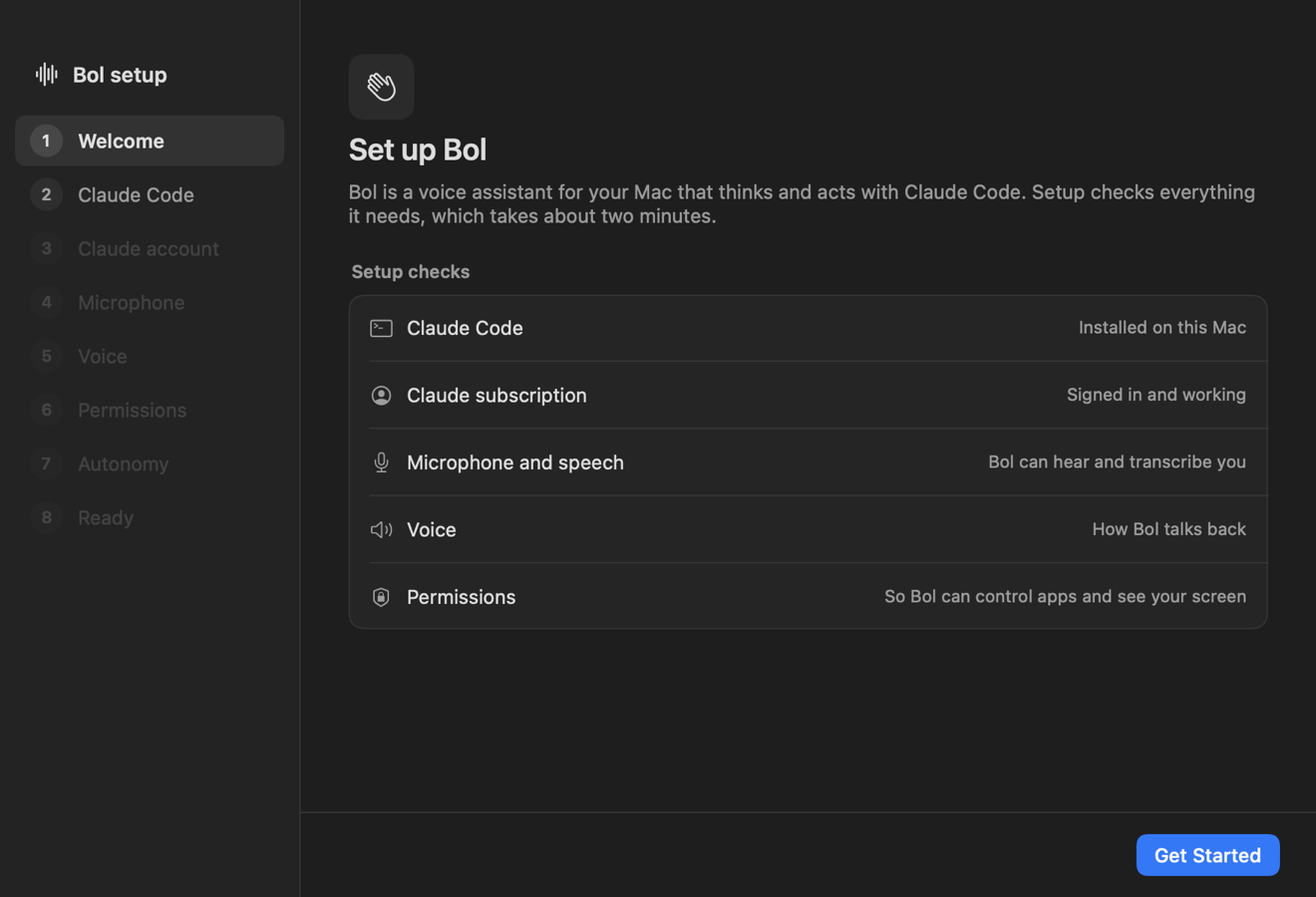
Setup checks everything Bol needs and takes about two minutes.
Bol thinks with the Claude Code on your Mac. If you already use it, skip this step.
curl -fsSL https://claude.ai/install.sh | bash
Drag it to Applications and open it. Setup signs you in, tests your mic and picks a voice.
Download Bol.dmgSay what you need. Try “what's on my calendar tomorrow?” or “turn on Do Not Disturb”.
Everything has a key. You never need the mouse to talk to Bol.
| ⌘J | Talk to Bol, or interrupt it and listen |
| ↩ | Send what you said without waiting for the pause |
| esc | Silence the reply, stop a request, or close the bar |
| fn hold | Dictate into any app |
| fn fn | Lock dictation on hands-free |
| ⌥⇧V | Paste the last dictation again |
| ⌘T | Open threads |
| ⌘, | Settings |
A Mac on macOS 13 or later, Claude Code installed, and a paid Claude subscription (Pro or Max) signed in to it. Setup checks all three.
No. Bol runs on your Claude subscription through the Claude Code on your Mac. An API key on its own can't do Claude's speech-to-text, so the subscription is what matters.
No. There's no wake word. The mic opens when you press ⌘J or hold the dictation key, and it's released whenever Bol is idle, working or speaking, so other apps can use it.
Anything Claude Code can do on your Mac: run commands, edit files, search the web, use MCP servers and Chrome. Bol adds its own computer control, so it can also see your screen and click and type in any app.
Risky actions such as deleting files, sudo, git push or
sending a message get a spoken “shall I proceed?” first. Screen access can be set to
automatic, ask first, or off.
On your Mac, in ~/.bol: threads, tasks, memory and a week of dictations.
Your requests go to Anthropic through your Claude account, the same as using Claude
Code. If you choose an OpenAI or Noiz AI voice, reply text goes to that provider for
speech.
It can. Hold fn in any app to dictate with Claude's live transcription. If you'd rather keep another app on fn, choose right Option or right Command instead, or turn dictation off.
Bol is free to download. Bring your Claude subscription.
Download for macOS